
Collaboration
Share a deck, invite editors, comment, and coordinate work with presence and cursor indicators in connected sessions.
Sharing a deck#
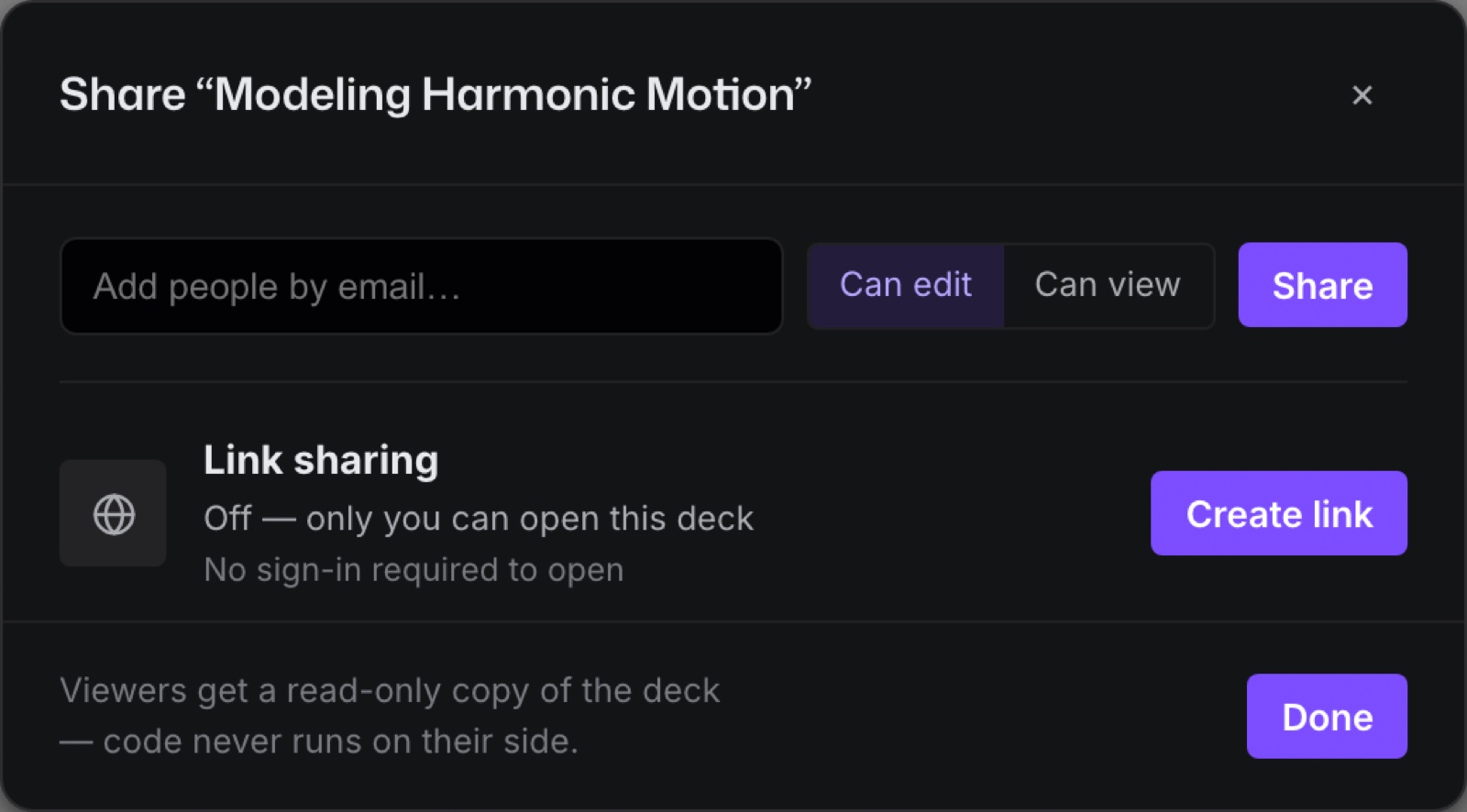
Open Share in the editor; the dialog names the deck under its title, and if you manage the deck it opens with the cursor in the address field. Type an address into Add people by email, choose a role from the menu beside it — Can edit (Change slides, objects and notes) or Can view (Open, present and copy) — and press Invite, or Enter. While an address is typed, Invite is the dialog's main button; otherwise it is Done.
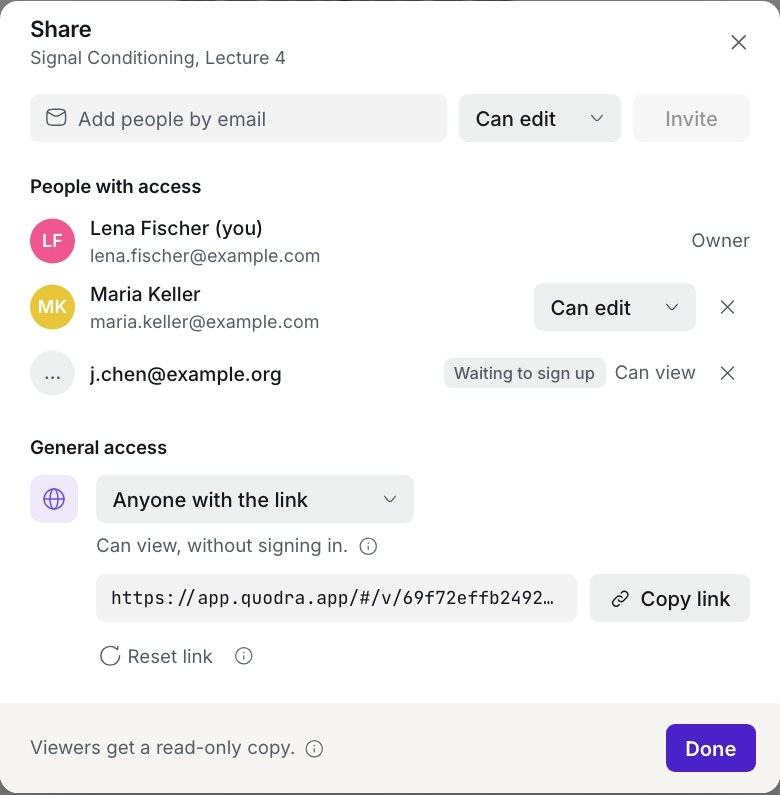
People with access lists you first, as Owner, then everyone you have added, each with a role menu and a remove button. A role changes at once; there is no separate save. Remove shows the person as Removing… with Undo for a few seconds, then takes their access away; Undo keeps them as they were, and nobody is emailed. Closing the dialog finishes any removal still waiting.
- Shared successfully, and the dialog says: Shared with them — they've been emailed.
- Not signed up yet, and the access is parked: Saved: they can open it once they sign up and confirm their email. The person is listed as Waiting to sign up, with their role, and you can withdraw that pending access at any time.
When someone has asked for access, Asked for access comes first in the dialog: who asked, their note, and Let view, Let edit or Decline. They hear what you decided.
Only the deck's owner manages sharing. If you open Share on a deck shared with you, it says who can change access — Only the owner, Lena Fischer, can change who has access. — and lists everyone with access: the owner first, then you, then everyone else it is shared with, each with their email address and role. It has nothing to change. If you can only view the deck, Share is in the bar of the deck's viewer. If the deck's workspace keeps people from outside it off its decks, the dialog says so under the address field before you invite anyone.
Decks shared with you appear in the dashboard under Shared with me, tagged with your role. Opening one as an editor shows a chip in the editor's title bar: Shared with you · can edit.
Python in a shared or imported deck never auto-runs. The editor shows Python is paused for this external deck until you press Trust and run. See Python & code.
Who sees whom#
Everyone a deck is shared with can see who else has access to it:
- The owner sees everyone with access, plus invitations still waiting for someone to sign up (Waiting to sign up) and requests for access, and can change all of it. The owner of a team workspace can manage its decks' sharing too.
- Everyone a deck is shared with, whether they can edit or only view, sees the owner and every other person it is shared with: their name, photo and headline from their profile (Settings › Profile), their email address, and their role (Can edit or Can view). They don't see invitations waiting for someone to sign up or requests for access; those stay the owner's.
- Someone you remove stops seeing the list straight away. If they open Share again, it says You no longer have access to this deck.
- Readers of a public link see nobody: the link's viewer has no Share.
Circuits and molecules follow the same rule.
What each role may do#
| Can edit | Can view | |
|---|---|---|
| Open the deck | Yes | Yes |
| Change slides and objects | Yes | No |
| Comment and reply in the deck UI | Yes | No controls in the current viewer |
| Resolve threads in the deck UI | Yes | No controls in the current viewer |
| Delete their own comment in the deck UI | Yes | No controls in the current viewer |
| See who has access, with their email addresses | Yes | Yes |
| Manage sharing | Owner only | No |
The dialog says the rule in its foot, each kind its own: Viewers get a read-only copy. for a deck (its ⓘ adds that code never runs for them), Viewers can probe it, not change it. for a circuit, and Viewers can look, not change it. for a molecule.
Link sharing#
A deck can also carry a public link for view-only access without an account. Under General access, one menu says who can open the deck: Only people you add (Only the people above can open it.) or Anyone with the link (Can view, without signing in.). Choosing Anyone with the link makes the link and copies its address to your clipboard; the address then sits under the menu, with Copy link (it says Copied, then Copy link again).
The token is stored only as a hash, so the full address is visible only on the device that made it. Open the dialog elsewhere, or after signing out and back in, and it says the link has been on since a date and that its address isn't kept on this device. Reset link turns the old link off and makes a new address; choosing Only people you add turns link sharing off. Both ask first, because anyone using the current link — an embed included — loses access.
The deck's workspace rules show before you press anything (Settings › Security & policies): if the workspace has turned links off, the menu stays at Only people you add and says so; if it opens links to signed-in people only, the line under the menu reads Can view, once signed in to Quodra. If the dialog cannot read the deck's links, it says Couldn't check the link. with Try again, rather than guessing.
Someone opening a link that has been reset or turned off gets a plain page: This link isn't active — It may have been turned off by the deck's owner, or the address wasn't copied completely.
Settings › Sharing & export › Who can open it › Anyone with the link gives every new deck its view link as soon as the cloud has it: open Share and general access already reads Anyone with the link. A deck made in a team workspace is open to the workspace's members as well, as every deck there is.
Circuits share by invitation only — there is no public-link viewer for one.
What a viewer sees#
Both read-only routes — a public link, and a Can view collaborator opening a deck from Shared with me — land on the same viewer: the real renderers on the real paper, with no editor chrome. It carries the deck's title, a slide counter, and a Made with Quodra link. A collaborator who is signed in also gets Share there, which lists who has access; a public link's viewer doesn't.
→,↓,PageDownorSpacemoves forward;←,↑orPageUpmoves back. Clicking the slide advances it.- The viewer does not run Python or the dependency engine. Supported equation results, plots and legends are derived locally from saved inputs and settings. Python output that exists only in the author's running session may not be available to the viewer.
- The viewer has slide navigation but no editing or comment controls. It loads a version when opened; reload to fetch subsequent saved changes.
The public sample demo is a separate experience with selected live controls. A demo, a shared deck viewer, and the editor's presenter view do not have the same capabilities.
Sample decks can't be shared. The dialog explains that everyone already has the sample, and that your first edit mints your personal copy, which then syncs and shares normally.
Working together#
When realtime collaboration is available and connected, the editor can show:
- Presence — avatars in the top bar, up to three of them, then a +N for the rest, and a count reading editing. When you're alone the bar shows nothing at all.
- Live cursors — each peer's pointer drawn on the slide in their own colour, sent in slide coordinates so it lands on the same object however either of you is zoomed. Cursors are rate-limited to
20updates per second and expire after8 sof silence, so a closed laptop doesn't leave a ghost behind. - Selection halos — an outline and a name badge on whatever a colleague has selected. These are advisory coordination indicators, not exclusive locks.
- Live edits — their changes appear as they happen, no reload.
Colours are deterministic: the same person is the same colour on every machine, drawn from eight hues chosen to stay legible on paper and on the dark chrome. Quodra's own violet is excluded on purpose, so a collaborator's cursor never looks like a piece of the interface.
Per-user undo#
Undo uses your local edit history. Changes received from other people are not added to that history. Undo still changes the current shared document, so it can affect an object a colleague has subsequently edited. Coordinate changes to the same objects and use revision history when you need to recover an earlier version.
Comments#
Open Comments from the editor. The drawer has two tabs, Comments and Activity, and takes the place of the inspector rather than floating over your work.
- Leave a comment. With nothing selected the composer reads Comment on this slide…; select an object and it becomes Comment on the selected object…, with the hint Anchored to the selected object — it follows if you move it. Press Comment to post, or ⌘⏎ from the box — plain Enter keeps writing, because review comments run long.
- Reply. Every thread has a Reply button and its own composer, so a point can be answered in place.
- Resolve. Anyone reading the deck can mark a thread resolved, and reopen it again. A resolved thread keeps a resolved tag.
- Delete your own. The delete button appears only on comments you wrote; the database enforces the same rule, so the button is never offered where it would fail.
The anchor is the object, not the slide. Move an equation to another slide and its comments travel with it; reorder the deck and nothing needs rewriting. Delete the object and the thread is marked object deleted rather than dropped — it stays visible on every slide so a colleague's review is never quietly discarded.
An object with unresolved comments carries a numbered pin; clicking it opens the drawer. Resolved threads are left out of that count, because a badge that keeps counting settled conversations trains people to ignore it.
A thread is always in one of three states, and the card says which:
| State | What it means |
|---|---|
| open | Nobody has settled it yet — this is what the pin counts. |
| resolved | Someone marked it done. It stays readable, and can be reopened. |
| object deleted | The object it was about is gone. The thread survives, shown on every slide. |
Comments are stored with the cloud collaboration data so they remain available when an editor returns later. Threads for the slide you're on are shown together with any orphans, and an empty slide says so: No comments on this slide. Select an object to comment on it, or leave a note for the slide.
Activity#
The activity feed records what people did — "added a chart," "deleted a heading" — in words, not raw edits, so you can catch up on what changed while you were away. Lines are written from the shape of the change: added a slide, deleted a slide, added, deleted, edited, moved, restyled, reordered the slide, each naming the object by its own text where it has any.
It is deliberately coarse. A run of identical edits inside about three quarters of a minute folds into one line, so nudging a chart into place is one event rather than a dozen. Times are short: just now, then minutes, hours, days. An empty feed says so: Nothing yet. Every change to this deck shows up here, with who made it.
Staying in sync#
Edits travel as patches the moment they happen, and the durable record underneath is still the revision-checked whole-document save with its offline queue. The two paths are never asked to do each other's job.
While connected peers are present, Quodra also checks the cloud copy when local work is saved and sync is healthy. This helps recover changes missed during a connection drop. Concurrent edits can still require conflict resolution; presence and cursors are not proof that both devices have saved the same version.
The save badge in the top bar is the honest report: Saved, Saving…, Syncing…, Offline, Conflict, or Error. Click it for Revision history, whose card at the top says whether your changes are saved on this device and in the cloud and, when the cloud refused a save, what went wrong. Offline it reads Saved on this device — waiting for a connection, and your edits queue.
If two copies genuinely diverge, the card says Two copies differ and who saved the cloud's copy, adding that nothing is overwritten until you choose. Compare This device with the cloud's copy in the preview, then pick Keep this device or Use the cloud's. Everyone's saves are listed below, by day, with who made each; restoring one asks first, makes it the current revision for everyone with the deck open, and keeps the revision it replaced in the history. Collaborators see the restore in the deck's activity.
Revoking someone's access removes them from the live room as well as the document.
Next#
- Presenting — take the finished deck to a room.
- Circuit Studio — the same collaboration, on a schematic.