
Python & code
Run real Python inside a slide. It executes in your browser, and its output feeds the figures beside it — nothing is pasted in as an image.
Python availability depends on your account and deployment. The browser runtime must load, imported code needs review and trust, and figures follow a successful run. Only Auto-run cells follow parameter changes automatically; manual, blocked or failed cells can retain earlier output. For a first connected example without code or an account, try the public filter sample.
Code cells#
Insert a code cell (C) and write Python. Run it with the ▶ button on the cell, or press ⌘↩ while it's selected. The cell executes and its result becomes available to the rest of the slide.
Python runs in your browser — there is no server executing your code, and it stays with the document.
With nothing selected, ⌘↩ runs every auto-run cell in the deck instead. The inspector's button says Run cell · ⌘↵ and does the same thing for the cell you are on.
The runtime, honestly#
The engine is Pyodide — CPython compiled to WebAssembly — pinned to one version and running in a Web Worker so a long calculation cannot freeze the slide. It downloads from the official CDN the first time a cell runs, which takes a few seconds cold and is cached afterwards. If that download fails, you get a cell error rather than a hang.
The inspector shows Kernel as python 3.12 before anything has run, and the engine that actually ran it afterwards. One cell executes at a time, in the order the runs arrived: stdout capture and emit are interpreter globals, so overlapping runs would write into each other's buffers.
Writing a cell#
Double-click the cell to edit it in place — the code is syntax-highlighted as you type, and the object grows and shrinks line by line with it. Tab indents, Enter carries the current indentation (and adds a level after a line ending in a colon or an open bracket), and ⎋ commits and leaves. While you are editing, the corner of the cell shows a ⎋ done chip.
In the inspector: On change switches the cell between Manual and Auto-run, Show output hides the printed output and figure without deleting them, and Line numbers turns the gutter on.
Reading parameters#
A code cell can read parameters as ordinary variables. Change a parameter and cells that depend on it re-run, so the figures they produce update too. That is the whole reactive loop, with real code in the middle.
Every numeric parameter in the deck is set as a global before your code runs, under its own name, at the value it holds right now. A cell counts as depending on a panel when its source mentions any variable that panel holds — no declaration step, no wiring.
Choices are the exception: they answer {{name}} in prose and drive choice slots on objects, but they are not passed into the runtime. A cell that needs to branch on one should read a number you set alongside it.
Output and figures#
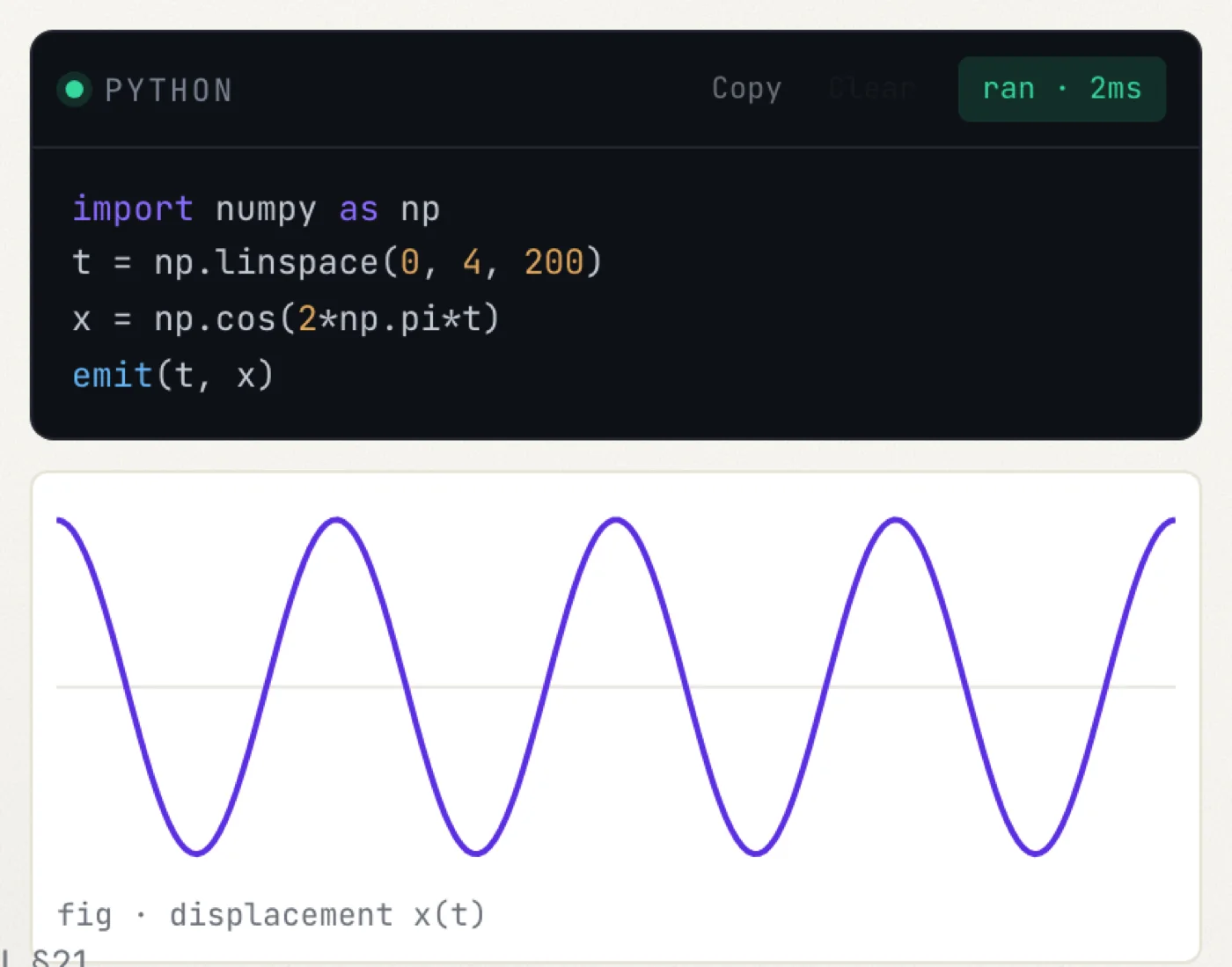
A cell's output can drive an artifact — a chart or figure that renders the cell's data. When the cell reruns, the artifact redraws. You write the computation once; the figure stays honest to it.
import numpy as np
t = np.linspace(0, 4, 200)
x = np.cos(2 * np.pi * t)
emit(t, x)   # hand the series to the figure beside it
A cell can produce three kinds of output, and they are not exclusive:
- Printed text — anything you
printappears in a panel attached under the code. - A series —
emit(x, y)hands a pair of equal-length sequences to the figure attached to the cell.emit(y)is the compact form, with sample indices for x. Only finite pairs survive: NaN, None and infinities are dropped, and a call whose points are all unusable is refused out loud rather than saved. - A figure —
emit(fig)on a Matplotlib figure renders it to a PNG and attaches it under the cell. Click it for Expand ↗ and a full-slide view; "Click outside or press Esc to return to the slide".
Matplotlib runs on the headless Agg backend, set before your import — the default backend wants a document, and there is none inside a worker.
To put a figure on its own, insert an artifact and choose its Source cell; the inspector names what generated it, marks it regenerates, and offers Open source cell. Until the cell has run it reads "no data — run the source cell".
Feeding an instrument view#
In Matter Lab, a spectrum object can point at a code cell: whatever (x, y) the cell emit()s renders as a live series with the instrument's own axes and conventions. A parameter can feed the cell, and the spectrum follows its output after a successful run. This requires Matter Lab and Python to be enabled, as well as the applicable trust and run settings.
The pairing is the Python row in the spectrum's inspector, which lists the deck's cells by their first line.
Packages#
A deck declares the packages it needs, and they travel with it. Open Python runtime… in the editor's ⋯ menu for Runtime packages: "These packages travel with the deck and load before its code cells run." They are fetched only when the first Python cell runs, and each one reports ready to load, loading…, loaded or failed beside it.
New decks start with NumPy, Matplotlib, SciPy, pandas and SymPy, unless Settings › Editor › Packages for new decks names others; a deck keeps its own list once it is made. The dialog also offers NetworkX, scikit-learn and statsmodels, takes any other Pyodide package by name, and has Reset defaults and Stop & reset Python. As it says: "Package names are loaded from the pinned Pyodide catalog. Specialized packages may take longer or fail if unavailable."
One cell can need something the rest of the deck does not. Cell packages in the code inspector is that list — "Extra packages for this cell only." — and reads "None — uses deck packages" when empty.
Run states#
The cell wears no header on the slide. The only states worth pixels while presenting live in a transient corner chip, and the full state sits in the inspector's Output row.
| State | On the slide | In the inspector |
|---|---|---|
| Nothing has run | — | idle |
| Waiting its turn | queued | queued |
| Loading packages | preparing… | running… |
| Executing | running… | running… |
| Finished | — | ran · 42ms |
| Failed | — | error |
After a run, Copy output and Clear output appear beneath. Clearing removes the generated series from the cell and from any artifact fed by it, and adds nothing to undo history.
When a run fails the cell shows a card headed Python could not run with the interpreter's own message underneath, and a plainer sentence above it when Quodra can tell what happened — a package that would not load points you at Python runtime… in the ⋯ menu.
When a deck opens#
A deck of your own runs its auto-run cells as it opens. Settings › Editor › Run cells when a deck opens can make it Ask instead — a banner, "This deck’s cells haven’t run", offers Run cells and Not now, and each cell still runs from its own button — or Never, so nothing runs until you run a cell. A deck shared with you, or one you imported, waits until you trust it, whatever the setting says.
Limits#
- A run is stopped after fifteen seconds —
Python execution exceeded 15 seconds and was stopped. Settings › Editor sets how long a run may take.Settings › Editor › Stop a run after chooses 10, 15, 30 or 60 seconds; the first run also loads Python, so it always has at least fifteen. The runtime is rebuilt afterwards, so the next cell starts clean. - At most five runs may be waiting; beyond that, "Python queue is full. Wait for the active run or reset the runtime."
- Printed output is captured up to two hundred thousand characters, and the attached panel shows the first six lines.
- A generated figure must fit inside
Quodra's 5 MB output limit. - Series are thinned for drawing past a couple of hundred vertices, keeping the extremes in each bucket so spikes survive. The data itself is untouched.
- Stop & reset Python ends the current work and rebuilds the runtime from scratch.
A failed run leaves the series the cell last emitted still drawn beneath it — the error card appears in the code body above the figure, so a mistake mid-talk does not wipe the plot you were explaining.
Running while presenting#
Code stays live in presenter view. The speaker-notes panel has a Run cell live button so you can execute the cell on the current slide without leaving your talk. See Presenting.
For decks imported from elsewhere, Python is blocked until you review and trust the deck — a safety step, since a shared file could contain code you didn't write. Interactive Python may also be gated per account during the beta.
The banner reads "Python is paused for this external deck — imported and shared decks never auto-run. Review their cells and declared packages before trusting them." with a Trust and run button. Until you press it, a run comes back as "Code execution is blocked for this imported deck. Review and trust it before running Python." The decision is remembered for that deck.
Next#
- Reactive documents — the inputs that feed your code.
- Charts, tables & diagrams — where the output lands.