
Reactive documents
Connect a named parameter to supported object properties, derived readouts and text placeholders. Add Python when a calculation needs code, with explicit trust and run settings.
Parameters#
A parameter is a named value with a slider — the input to your model. Give it a name (say zeta), a range, and a starting value. Anything that references that name reads its current value.
Drag the slider to update its supported bindings and placeholders in the editor or presenter. Python output changes after a successful run: execution must be enabled, the deck trusted and the cell set to Auto-run to follow automatically. Manual, blocked or failed cells may retain earlier output. When you release a drag, the change is recorded so undo can reach it.
For a first example without code or an account, open the public filter sample. Shared-link viewers do not offer this reactive editing environment.
Insert a panel with the Parameter tool (P). A panel is one object holding several numbers, because the numbers in an explanation come in sets — a stiffness and a mass — and what the audience needs to see is the thing they jointly produce. The panel is headed Parameters unless you give it a title, and carries a reactive badge.
What each variable carries#
The inspector shows one block per variable, headed Variable 1, Variable 2, and so on.
| Field | What it sets |
|---|---|
name | The identifier a cell reads and {{name}} answers to. Letters, digits and underscores only, never starting with a digit. |
min, max | The ends of the slider. |
step | How far one nudge moves it. |
val | The value it holds right now. |
label | Human wording shown on the slide. The name stays the identifier. |
unit | Shown beside the value — never part of the Python identifier. |
| Decimals | How many places the value is shown to, from zero to six. |
| Control | Slider or Stepper — a track you drag, or − and + buttons. |
A panel holds at most twelve variables and keeps at least one, so + Add variable stops at the ceiling and Remove disappears on the last one. Names are unique across the whole deck: add a second x and it arrives as x2, because {{x}} and a cell reading x must both answer to exactly one thing.
Renaming a variable is the one edit in the panel that can quietly break something on another slide. The name field says what currently depends on it before you change it — "2 cells read k by name. Renaming it here will not rename it there." — and when nothing does: "Nothing reads k yet. Cells use the name; prose and notation use {{k}}."
The derived read-out#
Press + Add a derived read-out and the panel gains a number worked out from its own variables — ω = sqrt(k/m) under a pair of sliders is the shape it exists for. It takes a name, a formula, an optional shown as (the pretty form the audience reads, √(k/m) for sqrt(k/m)), a unit, and its own decimals.
The formula language is arithmetic and nothing more: + - * / % ^, brackets, the constants pi, e and tau, and the functions sqrt, abs, exp, sin, cos, tan, asin, acos, atan, sinh, cosh, tanh, ln, log, log2, floor, ceil, round, sign, min, max, pow, hypot and atan2. Use Python for calculations beyond these built-in expressions, where execution is enabled.
Anything it cannot work out shows — rather than a plausible number, and the inspector says why: "Nothing here is called Q. This panel has k, m." or "Cannot be worked out — check the brackets, and that nothing divides by zero."
Panel presentation#
Show range prints the minimum and maximum at the end of each row. Accent recolours the panel. Under the read-out, the panel reports what follows it — nothing follows this, 3 downstream, or a brief downstream updated as the wave passes through. A slider that drives nothing is worth saying out loud; it is almost always a name that does not match.
Choices — when the input is not a number#
A panel can hold choices beside its sliders: a named set of options — phase: ferrite / austenite, representation: ball-and-stick / space-filling — shown as segmented buttons or a dropdown. Author them in the panel's inspector: name, label, and the options typed as value or value=Label, comma-separated. A choice's selection is always one of its options — editing the options never leaves it pointing at nothing — and a choice binds to choice slots on objects the same way a slider binds to numbers.
So bcc, fcc gives two plain buttons, and bcc=Ferrite, fcc=Austenite gives the same two values under the words the room should read. Control picks Segmented or Dropdown; segmented buttons are used when the control allows them and there are no more than four options, otherwise the panel falls back to a select.
A panel holds at most eight choices, and a choice keeps at least one option. Duplicate option values are refused rather than silently folded, and setting a value the options do not contain is refused too — there is no nearest legal value to a string.
What can depend on a parameter#
- Text and equations — insert
{{name}}to show a parameter’s current value. A placeholder substitutes a value; it does not solve an arbitrary equation. - Calculated equations — explicitly choose a numeric parameter in an input's Source control. Compatible units convert automatically; see equation inputs and calculation.
- Equation plots and variable legends — follow their source equation's current inputs and definitions. A plot varies one input over its saved range without changing that input's local value or linked parameter; see Plot an equation.
- Code cells — read parameters as variables (see Python & code).
- Charts and artifacts — a figure fed by a cell redraws when the cell reruns.
- Object properties — bind a variable straight to a number on another object: a resistor's resistance, a pendulum's length, a phase diagram's temperature, a trajectory's frame. The binding carries the value unconverted, and the slot advertises its unit so a mismatch is visible before it is confusing.
Prose and notation: {{name}}#
A binding drives a number that has a place to sit. A sentence has no such place, so content refers to a parameter by name: write {{k}} in body text, a heading, or an equation's LaTeX, and the document shows the value where the name was. A choice answers the same way, with its selected option — {{phase}} in a heading reads austenite.
Doubled braces, not single: \frac{R}{2} would be full of false matches otherwise. A name with no parameter behind it is left exactly as written, so {{Q}} sitting visibly on the slide tells you that nothing answers to it. And while you edit, you are handed back the {{R}} you wrote rather than the 220 it currently reads as.
Driving another object#
Under each variable the inspector has a Drives row. Open Choose a value… and it lists every slot in the deck that is free to be driven, written as object · slot with the slot's unit in brackets. Pick one and the wire is drawn; each wire you have made appears above the row with an Unbind button beside it.
Two rules keep this honest. One slot takes one driver — binding a slot again replaces what was there, because two parameters fighting over the same number has no meaning. And wiring something up must not move it: on a variable's first wire only, the slider re-homes to the value the slot already holds and adopts the range, step and unit the slot says it is meaningful over. A range that no longer contains the value is widened rather than clamped.
Equation input links are an exception to this first-wire adjustment: linking an existing parameter leaves its value, range and unit unchanged. The equation converts the incoming value to its expected input unit and reports a missing or incompatible source instead of using a fallback value.
The value is never written into the target. Bindings are applied as a projection of the document, so the parameter stays the single source of truth and unbinding leaves nothing behind to clean up.
What offers slots#
| Object | Slots it offers |
|---|---|
| Circuit | Every component that carries a value, keyed by component id, so a binding survives renaming R1 to R7. Offered in the unit an engineer would put on a slider — µF and mH rather than farads and henries. |
| Table | Any ordinary table cell that already holds a number. Headers, labels, empty cells and generated variable-legend cells are not offered. A chart reads its table, so driving a cell moves the chart. |
| Chart | Axis minimum and axis maximum — the window, not the data. |
| Diagram | Node count. |
| Simulation | The knobs that model actually has, plus playback speed. See Simulations. |
| Crystal | Supercell repeats along a, b and c; atom size; and representation, a choice slot taking ball-and-stick, space-filling, unit-cell, polyhedra, bonds or points. |
| Phase diagram | The state point's composition and temperature, in the diagram's own units and range. |
| Diffraction (XRD) | 2θ from and 2θ to. |
| Spectrum | Axis from, axis to, and — for a line scan — the scan position. |
| Stress–strain | The strain cursor, which the specimen animation follows. |
| Gibbs energy | Temperature, and the Ω(α) and Ω(β) interaction parameters. |
| Ashby chart | Guideline position. |
| Trajectory, Field | frame and playback speed in fps — bind frame and any slider scrubs the run. |
Who may move a parameter#
Every variable and choice carries its own presentation policy, set in the panel inspector: editable, locked, or hidden while presenting; editable or locked on supported audience surfaces; and reset on re-entry for a repeatable demo. A locked slider still shows its value. The Audience setting does not enable controls, Python or reactive recomputation in the current shared-link viewer.
The three rows live under Who may move it: Presenting (Editable · Locked · Hidden), Audience (Editable · Locked), and On re-entry (Keep value · Reset). The defaults are today's behaviour, so a deck that never opens this section changes in nothing. Hide every control on a panel and the panel itself stays backstage while you present.
How recompute works#
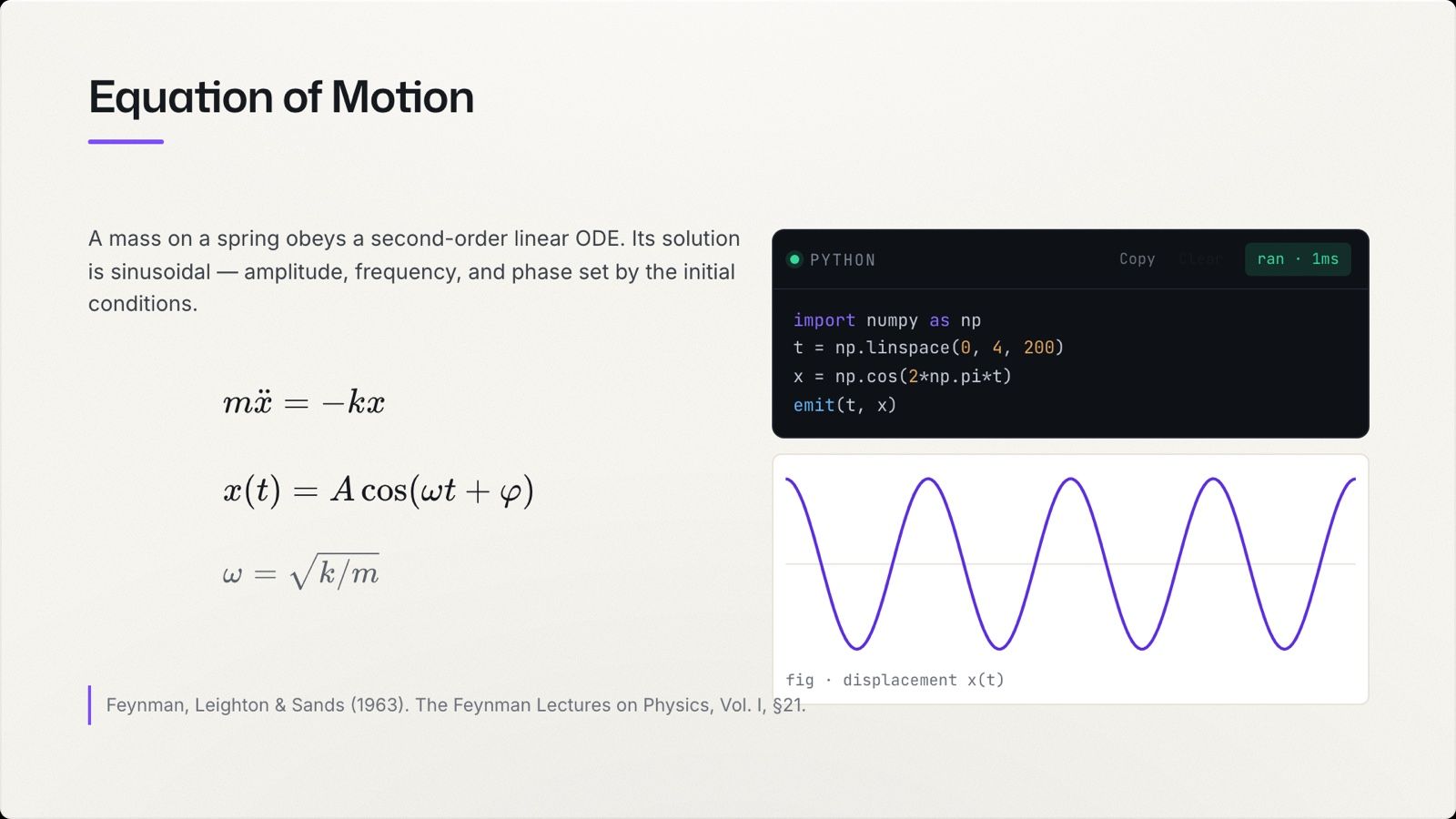
Quodra tracks supported connections between objects. Direct bindings project values into supported properties; placeholders substitute values into text and notation. A computation chain can take this form:
parameter → supported property / successful Python run → linked resultChange the parameter and the update propagates through connected objects. Python output depends on a successful cell run: manual, blocked or failed cells may retain earlier output, so check the cell status before presenting a result.
A cell counts a panel as an input when its code mentions any of that panel's variable names, so a cell reading k re-runs when the m beside it moves — over-eager rather than wrong, and a panel's numbers almost always belong to the same idea. Only cells set to Auto-run follow a slider; a Manual cell waits for you. The pace self-tunes: holding a slider still produces frames, and a slow machine thins them out rather than queueing work it cannot paint.
Rehearse the exact connection you plan to show. In the editor’s presenter, supported controls remain available; Python still needs enabled execution, trust and a successful run.
Designing a reactive slide#
- Put the inputs (parameters) where the audience will look first.
- Keep the chain short — a parameter feeding one cell feeding one figure reads clearly.
- Name parameters for what they are (
damping,gain), notx1,x2. - Watch the panel's own footer: if it says
nothing follows this, the name in your cell and the name on the slider have drifted apart.
Next#
- Python & code — the computation engine behind cells.
- Charts, tables & diagrams — the figures on the other end.