
Presenting
A presenter cockpit with your notes and the next slide, a laser and pen for the audience, and a whiteboard — all while the numbers stay live.
Entering present mode#
Press Present in the editor — the primary button in the top bar. It starts from the slide you are on; the menu beside it offers From this slide, From the beginning and Rehearse, and Settings › Editor › Present starts from can make the button start from the beginning. Your slides go full-screen and every editor shortcut retires, because presenting replaces the editor body rather than sitting on top of it.
The address bar tracks the slide you are on, so a talk can be linked to at the slide it should open on, and pressing End returns you to the editor on the slide you finished on.
The objects can stay live — drag an editable parameter or, from the notes panel, press Run cell live to execute the code on the current slide without leaving your talk. Python must be enabled and the deck trusted. This presenter view differs from share links and embeds, whose read-only viewer does not run Python or recompute the deck.
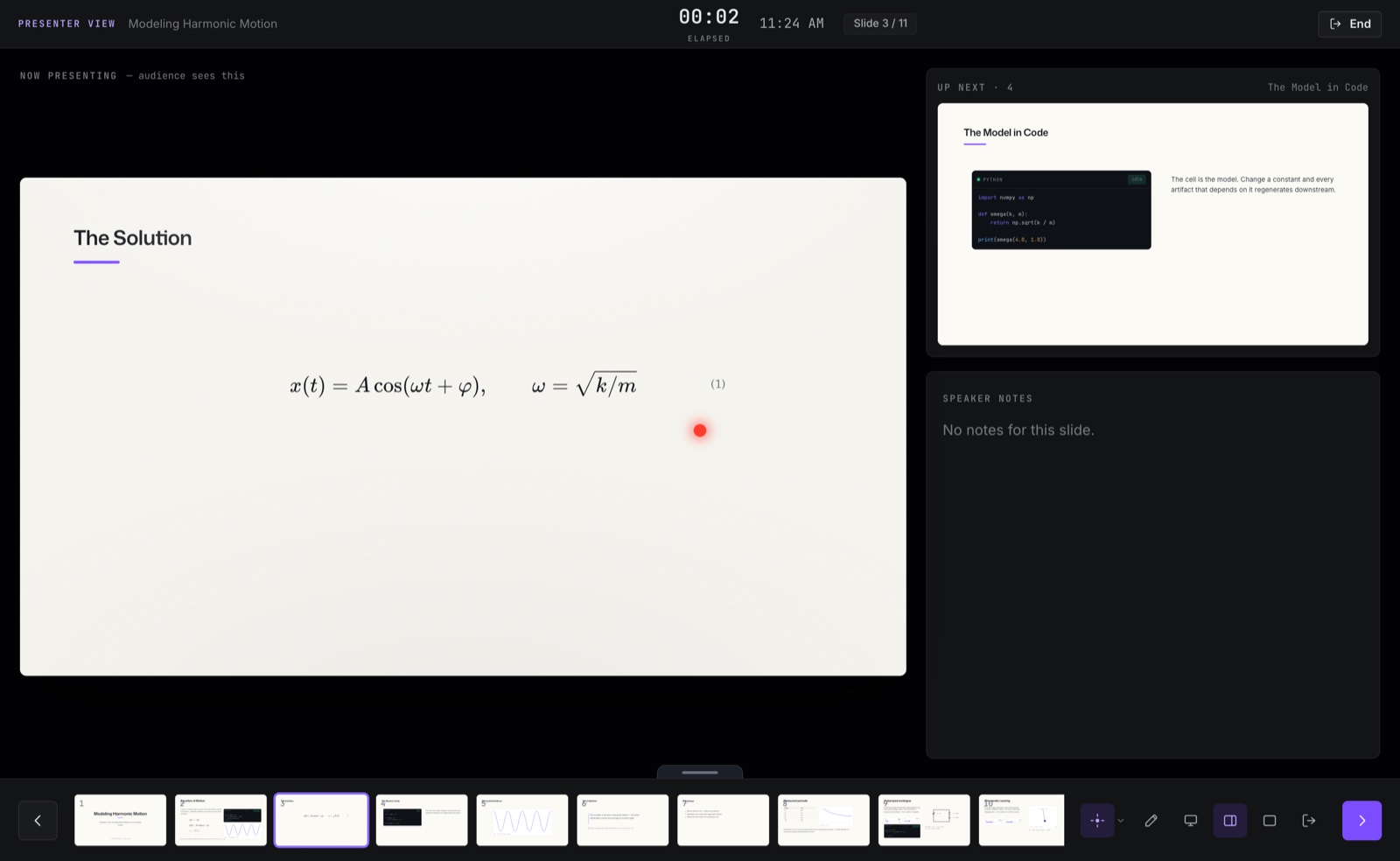
The presenter view, element by element#
Across the top:
- Presenter view and the deck's title, on the left.
- The elapsed timer, counting from the moment you started, captioned ELAPSED.
- The wall clock, so you can look at one place for both kinds of time.
- The slide chip: Slide N / M.
- End, which leaves the talk.
In the middle, the live slide under the label Now presenting and the reminder — audience sees this. It is the real renderers at full size, not a picture of them, which is why a parameter still drags and a simulation still runs.
On the right, the side panel:
- The Up next · N card with a thumbnail of the following slide and its name. On the final slide it reads Last slide and End of deck.
- Speaker notes for the current slide, paragraph by paragraph. With none written it says No notes for this slide.
- Run cell live, shown whenever the current slide holds a code object. It runs that cell in place and the figures downstream update in front of the room.
Along the bottom: previous and next arrows, a filmstrip of every slide with its number — click any thumbnail to jump straight there — and the tool row.
Press N (or the panel button) to hide the notes and up-next column and give the slide the full width. The choice is remembered for your next talk, and is the same switch as Settings › Editor › Open presenter view.
Settings › Editor › Slide numbers for the audience puts a small 8 / 24 in the slide's corner while you present — on your copy of the slide and in the audience window — so a question can name the slide.
Settings › Sharing & export › Keep a version when you present keeps the deck as the room is about to see it each time a talk starts, named Presented and the day, in the deck's Revision history, where Kept lists it. It counts toward the revisions a deck may keep; when the deck has kept all it may, the talk starts all the same.
Moving around#
| Action | Keys |
|---|---|
| Next / previous | → ← (or Space, PageUp/Down) |
| First / last slide | Home / End |
| Jump to any slide | Click its thumbnail in the filmstrip |
| End the talk | Esc |
Esc backs out one layer at a time: an open tool panel first, then the pen, and only then the talk itself. Keys are ignored while you are typing in a field.
The laser pointer#
The laser is armed by default. Move your pointer over the slide and a dot follows it for the room to track. Toggle it with L, and set its colour and size from the pointer settings — the caret beside the laser button opens them.
- Colours: Red, Violet, Amber, Green, Cyan, White.
- Sizes:
9,14,20or28pixels, from a modest dot to one visible at the back of a lecture theatre.
Your choice is remembered between talks. The dot is the thing an audience watches for an hour, so it is a preference rather than a constant.
Pen annotations#
Press P to draw directly on the slide. Pick an ink colour — Violet, Red, Amber, Green, Cyan, White or Ink — and a width of 2, 3, 6 or 10; the nib under your pointer shows the exact size and colour before you make a mark.
- Annotations are per-slide and ephemeral: moving to the next slide clears them.
- The Eraser (
E) lifts a whole stroke at a time — a presenter wants the wrong line gone, not a hole in the middle of the right one. - Clear wipes the surface, and is undoable like anything else.
- Undo and Redo step back through your ink: ⌘Z and ⇧⌘Z on a Mac,
Ctrl+ZandCtrl+Shift+ZorCtrl+Yelsewhere. The history is per surface, and it resets with the ink when you change slide, so a redo can never bring back a stroke drawn somewhere else. - Press
Pagain to put the pen away.
The whiteboard#
Press W to pull up a whiteboard — a scratch surface in front of the slide for deriving something by hand; the pen comes up with it. There is also a tab at the edge of the screen to pull it up by hand.
Choose a surface — Plain, Ruled, Grid, Graph, Dotted, Columns or Slate — and draw. The board keeps its own ink, separate from the slide's, and its own undo history. Press W again, or use the grip, to put it away; the slide is untouched underneath.
Blackout#
Press B to black the screen when you want the room's attention on you, not the slide. Press it again to bring the slide back. The blackout is what the audience sees — you keep the cockpit, so the thing that turned it on can turn it off.
Live objects while you present#
These stay interactive on the stage rather than freezing into a picture: parameters, code cells, simulations, and the Matter Lab objects — crystal structures, phase diagrams, diffraction patterns, spectra, mechanical curves, Gibbs and Ashby plots, trajectories and fields. A crystal you cannot orbit mid-talk is the static slide this product replaces.
So you can take a question and answer it: drag a slider and the figure beside it recomputes; press Run cell live and the room watches the numbers land.
A parameter can be flagged to reset when its slide is reopened. Flagged that way, it snaps back to the value it held when the talk started every time you return to that slide — a demo that always opens clean, however hard the last room played with it.
Presenting a canvas deck#
When Canvas is enabled for your account and deployment, a canvas document presents as a camera gliding across the infinite plane. Each frame is a stop, in order; a canvas with no frames presents as one view of everything on it.
→ ↓ Space PageDown advance, ← ↑ PageUp go back, Home and End jump to the ends, B blacks the screen and Esc leaves. The heads-up display shows your position and an exit control. Canvas mode is the camera and the objects only — the notes, filmstrip, laser and pen belong to deck mode.
Presenting into a video call#
To present into Google Meet or Zoom, use the audience window so the room sees a clean slide while your notes stay private. See Present to Meet & Zoom.
Next#
- Present to Meet & Zoom — the clean audience view for a call.
- Keyboard shortcuts — every key in one place.