
Import & export
Bring in supported presentation content, review what converted, and choose a static export or a read-only viewer for the result.
Start with one slide#
You do not need to migrate a whole talk to evaluate Quodra. Try the public filter example first. With a Quodra account, make a small source-file copy containing the slide you want to adapt, keep your original, and review the import before adding connections.
Imported charts come in as Quodra charts over a table of their numbers, and SmartArt as the shapes PowerPoint drew for it; a pasted figure does not become an executable model. You can keep the rest of a presentation in PowerPoint or Slides and use an exported Quodra image for a static result, or switch to Quodra’s presenter for the connected example. Follow the one-slide workflow for preparation and fallback steps. Google Slides import needs Google sign-in configured for the deployment; the Import dialog says when it is not.
Importing#
From your library, choose Import a file. In the editor, Import as a new deck… in the deck menu (click the deck's name) opens the same dialog. Either way the file becomes a deck of its own and opens; the deck you had open is left as it is. The Import presentation dialog offers two sources:
- This device — PowerPoint (.pptx), PDF or Quodra (.json) file, from a normal file picker. The card says each format's size and page limits.
- Google Slides — Pick a presentation from your Google Drive.
Its footer states the posture in one line: Imported decks never run code until you explicitly trust them, and anything that can't map is reported.
From PowerPoint#
Pick a .pptx and Quodra reads the archive directly in your browser — slides, text, shapes, images, tables, speaker notes and the file's theme colours. Placeholders that inherit their position from a slide layout are resolved against that layout, so a title lands where the layout put it rather than at the origin.
If the file isn't a presentation at all you get a plain refusal — That file is not a .pptx presentation — rather than a half-imported deck.
An imported deck keeps the file's own slide size: a 4:3 presentation stays 4:3. Settings › Sharing & export › An imported PowerPoint keeps › My slide size fits the slides into your own size instead (Settings › Editor › Slide size), centred, with their text scaled alongside; the import report says so.
From a PDF#
Pick a .pdf and Quodra reads it in your browser, one slide per page. The deck takes the first page's size, so a talk exported to PDF comes back at its own proportions; a page of another size, such as a handout page in a slide deck, is scaled to fit and named in the review. While a long PDF is read, the dialog counts its pages off.
- Text comes back as text you can edit: large short lines as headings, paragraphs and bulleted or numbered lists as text, with bold, italic, colour and the kind of typeface (serif, sans or monospace). The PDF's own fonts are not carried, so a line can break differently.
- Pictures come back as images where the page placed them, kept as sharp as the slide can show them.
- A page's background colour becomes the slide's background, so light words on a dark page stay readable.
- Drawings (lines, boxes, arrows, a chart drawn rather than pictured) do not come across; the review names how many there were on each page.
- A PDF whose pages are pictures, such as slides exported as images, imports as one picture per slide.
A password-protected PDF, a damaged one, or a file that is not a PDF is refused with a sentence that says which. How large a PDF imports depends on your plan (see How large a file imports below); a larger one is refused before it is read: This PDF is too large to import. Split it or compress it, and try again.
The PDF becomes a new deck, from the dashboard's Import a file or the deck menu's Import as a new deck… alike. Importing never replaces the deck you have open.
From Google Slides#
Google import runs in three phases, and the dialog names each one as it happens:
- Waiting for Google sign-in… — Quodra asks for the
drive.filescope, the least-privilege one: it can only ever read files you explicitly pick. - Choose a presentation in the picker… — Google's own Drive picker opens, filtered to Slides documents and
.pptxfiles. - Fetching from Google Drive…, then Converting to a Quodra deck… — a native Slides document is exported by Google as
.pptx; an uploaded.pptxdownloads as-is. Either way it then flows through exactly the same importer as a local file.
Cancel at any point and nothing happens; the dialog stays open for another try. If Drive refuses the file you'll see Google denied access to that file — pick it again to grant access.
Google import has to be configured for the deployment you're using. When it isn't, the card says so rather than failing at the picker.
From a Quodra file#
A .quodra.json file imported from This device comes back as a full Quodra document — every object type, reactivity intact. It is given a fresh id so it can never collide with a deck you already have. A file that isn't one gets Import failed — that file isn't a Quodra deck.
Interactive features carry their own rules. Python in an imported deck is blocked until you review and trust it — a shared file could contain code you didn't write. See Python & code.
How large a file imports#
A PDF or a PowerPoint file imports up to your plan's limits:
| Plan | Largest file | Pages or slides |
|---|---|---|
| Free | 25 MB | 100 |
| Academic | 50 MB | 200 |
| Pro and Teams | 100 MB | 300 |
The import dialog says yours under This device. A member of a Teams workspace imports with the Teams limits. Signed out or offline, the Free plan's apply. Through Quodra's hosted MCP connection a PowerPoint file also travels in a single request, so there it can be about 25 MB at most, whatever your plan; the slide limit is your plan's.
The import report#
Whenever anything needs your eyes, an Import review opens before the deck does. It carries a count of slides, objects, images and notes, then two lists:
- Warnings — non-fatal approximations, stated plainly. For example: Slide numbers, dates and footers became the deck's footer fields; a date PowerPoint kept current keeps the date the file was saved with, or a note that some placeholders inherited their position from the layout and were placed in standard regions.
- Not carried across — one line per thing, grouped, each naming the kind of element, why it didn't map, and the slides it was on.
When there is nothing to report the dialog says Everything mapped cleanly. The toast behind it summarises either way: the deck's title, then its slides, objects and images, and a count of items to review if there are any.
What maps, and what doesn't#
| From a .pptx | Result |
|---|---|
| Text, titles and body placeholders | Native Quodra text and headings, with runs and paragraph formatting; a title at its master's size and weight |
| Autoshapes | Quodra shapes |
| Embedded images | Imported and carried inside the deck |
| Tables | Native Quodra tables, header row preserved |
| Speaker notes | Slide notes |
| Groups | Quodra groups, nested, with rotation and flips |
| Hyperlinks | Links: web, mail and jumps to a slide |
| Charts | Quodra charts over a table of their numbers (a pie is drawn as bars) |
| SmartArt | The shapes PowerPoint drew for it |
| Linked (non-embedded) images | An empty frame named by its address; never fetched |
| Other embedded objects | Reported as an embedded object Quodra can't represent |
| Equations | Quodra equations |
| Video | Quodra video, with its poster |
| Animations | Quodra builds, click by click |
| Footers and slide numbers | The deck's footer fields |
| Typefaces | Quodra's face of the same kind (serif, sans, monospace); the review names the faces replaced |
| Slide backgrounds | The slide's colour, gradient or picture, from the slide, its layout or its master |
| Shape shadows | The theme's shadow under a box; other effects are named |
Honest limits worth knowing before you try a large file:
- A single image over
8 MBstays behind and is reported. Images are embedded in the document, so a big one costs more than its own size. - How large a PowerPoint file imports depends on your plan (see How large a file imports below). A larger one is refused before it is read: This deck is too large to import. Split or compress it and try again.
- Past
25 MBof embedded images in total, the report warns that the deck will be heavy to sync until the images are trimmed. - Formats that come through are PNG, JPEG, GIF, WebP, SVG and BMP; anything else is reported as an unsupported image format.
- Entrance animations become Quodra builds, click by click; Quodra's builds appear or fade.
Exporting#
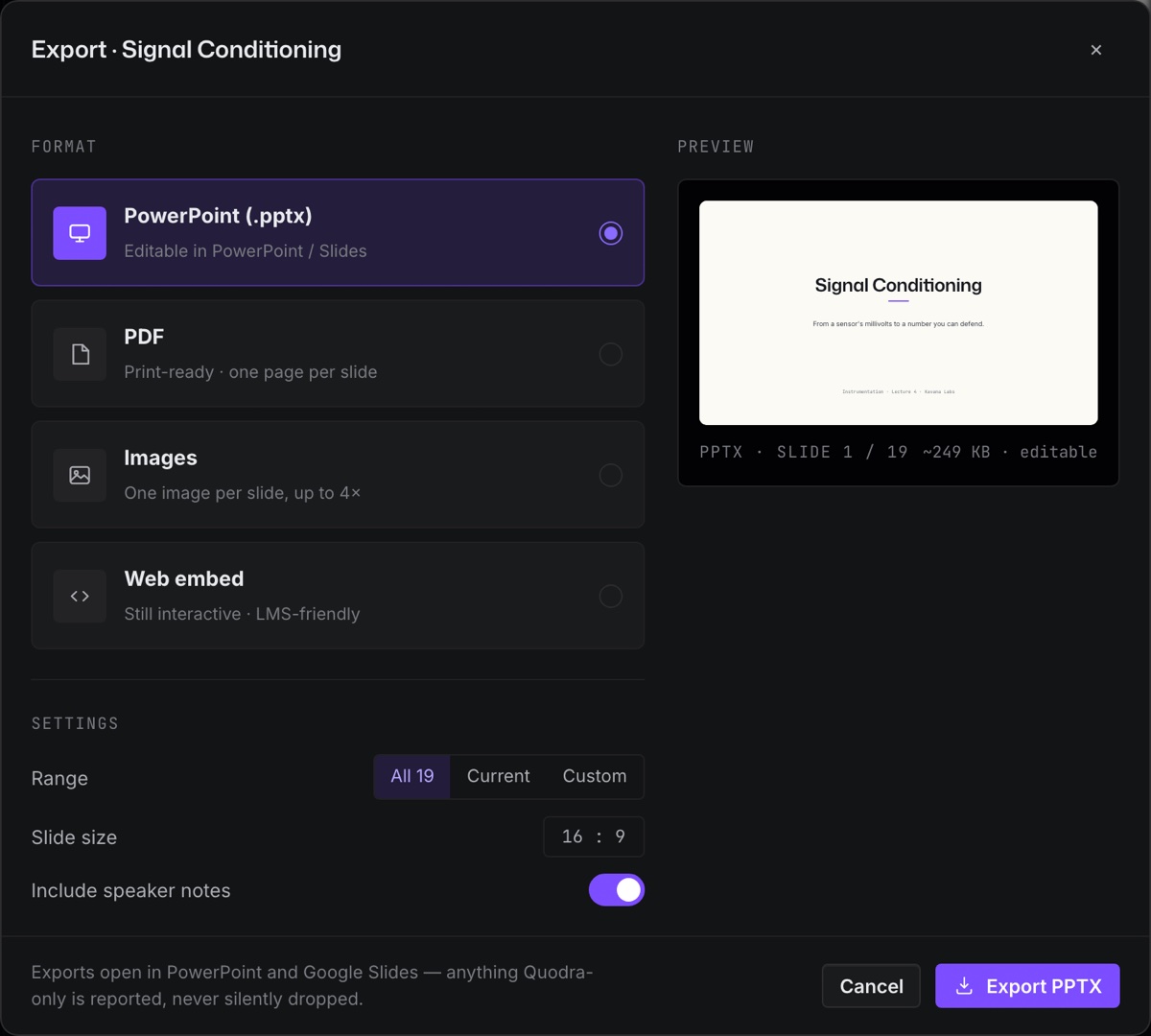
Open Export in the editor, or Export… in the deck menu (⌘E). The dialog lists the formats on the left in three groups — Slides as files, Moving and Live — and shows the chosen one's preview, with ‹ › to step through the slides it will export. Beside the preview is a short summary: what the format is for, an ⓘ with the detail, and its facts at the settings you have chosen — pages or slides, an estimated size, the pixels. The settings sit underneath. On a phone the dialog is a sheet from the bottom of the screen, the formats a row of chips.
| Format | Output | Best for |
|---|---|---|
PowerPoint (.pptx) | Native elements, captured images and fallbacks | Continuing work in PowerPoint or Google Slides, after reviewing the conversion. |
PDF (.pdf) | Captured slide images inside PDF pages | A static handout at the selected resolution. |
Images (png · jpg) | One image per slide, up to 4× | Figures for a paper, a poster, or another document. |
Animated GIF (.gif) | One clip per slide, whatever moves still moving | A loop that plays anywhere. |
Video (.mp4) | One recorded clip per slide | A smaller clip in truer colour than a GIF. |
Web embed (link) | Read-only slide viewer with navigation | Showing a deck on a page or in an LMS. |
Quodra file (.json) | The whole deck as one .quodra.json file | A backup, or a deck to open again in Quodra. |
Web embed is offered only where a share link can be made: a deck you own, in a studio connected to the cloud. It is left out for a sample, the public playground, a deck shared with you and a deck whose workspace turned links off.
Every format except the embed and the Quodra file takes Slides: All, Current, or Custom with an expression like 1-3, 5.
- PowerPoint — at the deck's own Slide size; Live objects as Still pictures, Animated GIF or Video (the last two when something on the slides moves, then with Length and Smoothness); Speaker notes, on by default; and the Quodra mark.
- PDF — Page size of Slide in the deck's own shape (Slide · 16:9, Slide · 4:3, Slide · A4…), A4 or Letter; Resolution from
1×to3×; Encoding of PNG or JPEG, with a JPEG quality slider; Notes pages to print a notes page after each slide that has notes (on when the window opens, unless Settings › Sharing & export › Speaker notes in PDFs is off); Page numbers; and the Quodra mark. - Images — Resolution from
1×to4×(3840 × 2160per 16:9 slide at4×), the same Encoding, and Transparent for PNG. One slide downloads as a file; several arrive as one.zip, because browsers block a burst of separate downloads. - Animated GIF and Video — Length from 2 to 12 seconds, Smoothness from 8 to 24 frames a second, and Resolution
1×or2×; a GIF also takes Colours and Loop for ever. Only what moves is recorded; keep the tab in front while it records. - Web embed — the deck's Share link, read from the deck itself: On with its address and Manage in Share; Off, with Create share link at the foot; on but made without embedding, with Make an embeddable link at the foot (which asks first, since anyone using the current link loses access, then puts a link that embeds in its place); or on but with its address not kept on this device, with Reset (which asks first, since anyone using the current link, embeds included, loses access). Then Opens on slide, a Theme of Reader's, Dark or Light, a Width of Fill,
720 pxor960 px, Full screen, and the Embed code: a plain iframe in a wrapper that holds 16:9 at any width. Copy embed code copies it; Copy link copies the embed's own address, for hosts that build their own frame. - Quodra file — no settings. Export Quodra file downloads the complete document, its images inside it, as
.quodra.json: nothing becomes a picture, and the importer above reads it back losslessly.
Each format offers only its own resolutions, and changing format keeps the nearest one: 4× chosen for images is 3× in a PDF and 2× in a clip.
The Quodra mark row says everything on one line. Where your plan carries the mark, the switch is on, beside your plan's name, where the mark goes (In a strip under each slide., On every slide.) and Remove it, which shows the plans that remove it. Where the mark is your choice, the row is the switch, and where the mark goes while it is on.
The foot says what the export will make — 38 pages · ~6.8 MB — beside the format's own button, such as Export PDF. While the export works, it says how far it has got — Rendering slide 8 of 18… — over a progress bar, with Stop; Escape and a press outside the dialog do nothing then. When the file is made, the foot names it, with Export again and Done; if something failed, it says what, with Try again.
From the dashboard, a deck's menu also offers Export JSON, which downloads the same file without opening the deck.
Every file is named after its deck. Settings › Sharing & export › File names › Title and date adds the day it was made, written 2026-10-06 so the files sort. Where your plan lets you choose the Made with Quodra mark, the same page sets whether the export window starts with it on.
What travels, and what doesn't#
- PDF and images are snapshots made from browser captures. PDF embeds those captures as PNG or JPEG images; slide content is not preserved as vector artwork or editable text. Resolution affects detail when zooming or printing. Run the cells you need before exporting: export does not rerun Python, and captures use the output available at that moment.
- PowerPoint carries the content as native PowerPoint parts wherever one exists: headings and text as text boxes with the first level-one heading marked as the slide's title, shapes as shapes, images as images, tables as tables, and supported charts as native charts. Equation plots use numeric XY coordinates; variable legends export their current literal text and values as static tables. These exports do not retain Quodra links. Invalid equation sources produce labelled placeholders and an Export review warning; a table chart without data is reported instead of guessed at.
- Scientific and interactive content in PowerPoint has limits. Parameter panels become static values. Code cells, equations, simulations, circuits, diagrams, molecules and computed artifacts use captured images where supported; without a capture, a code cell leaves as its text in a monospace face, an equation as its formula in plain text, and the rest as labelled placeholders. Matter Lab objects and text with inline mathematics are captured as pictures, like the other scientific objects. A plain table's caption is a text box under the table. Check the exported file and the Export review before sharing it; these objects do not retain computation or interactive controls in PowerPoint.
- Web embed loads the shared deck into a read-only viewer with slide navigation. It does not run Python or the dependency engine; supported equation results, plots and legends are derived locally from saved inputs and settings. Reopening or reloading loads the available shared version. It has no editing or presenter controls and is not a synchronized live presentation session.
An export that had anything to say opens an Export review — the same dialog as the import report, listing placeholders and affected slides. It also reports missing chart data, unavailable equation outputs and externally linked images.
Use the editor or its presenter view for a live computation demo. A share link or embed is for viewing, and does not provide the same controls or execution environment.
Next#
- Presenting — present live instead of exporting.
- Collaboration — invite collaborators or create a viewing link.