
The editor
A slide is a canvas of independent objects, each with its own settings. This is where every control lives — the toolbar, the inspector, the layers, the rail, and the keys that drive them.
The slide is a canvas of objects#
A slide holds independent objects. Select one to move, resize, rotate, or edit it; select several and act on them together. With nothing selected, the inspector shows the settings for the slide itself.
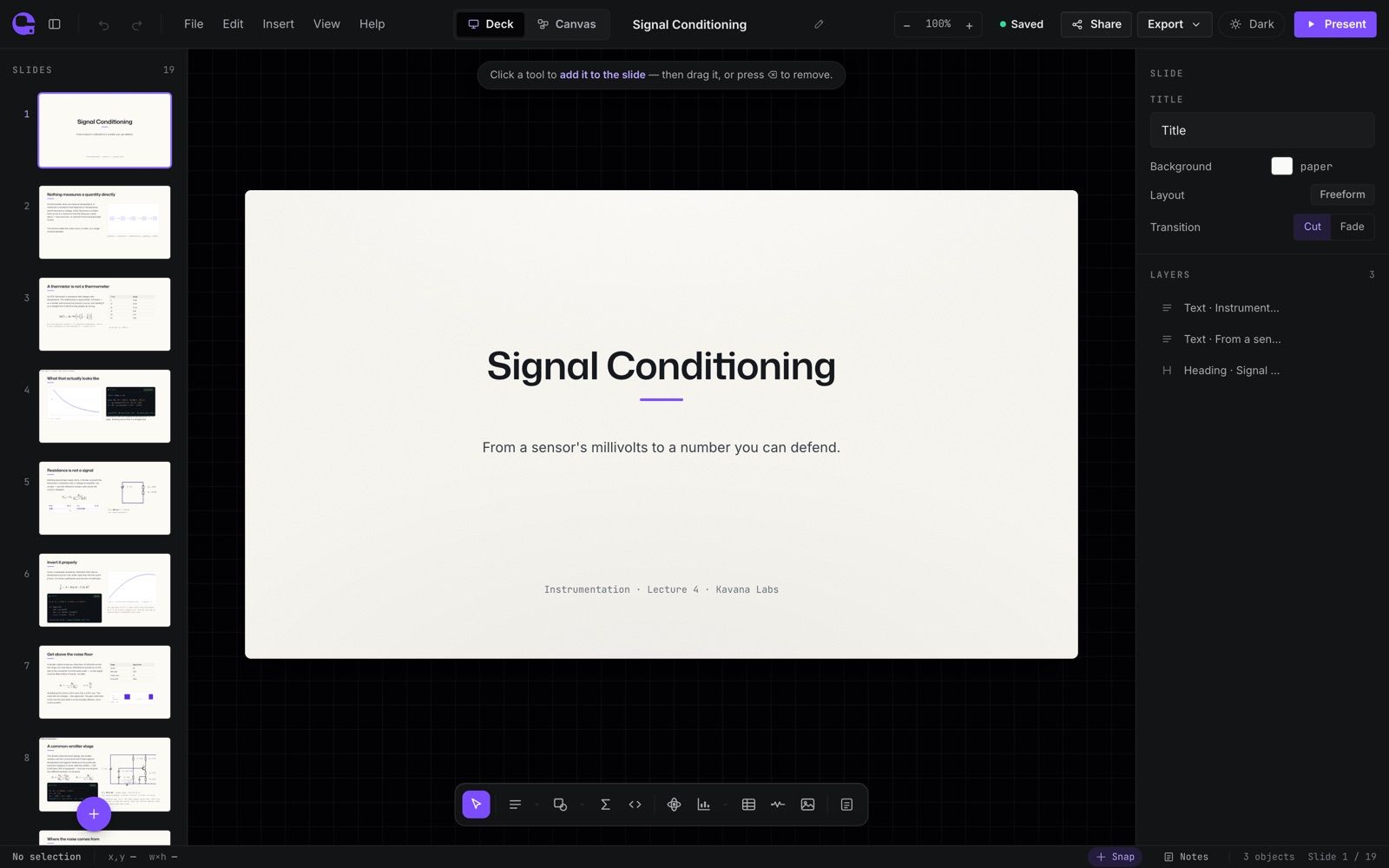
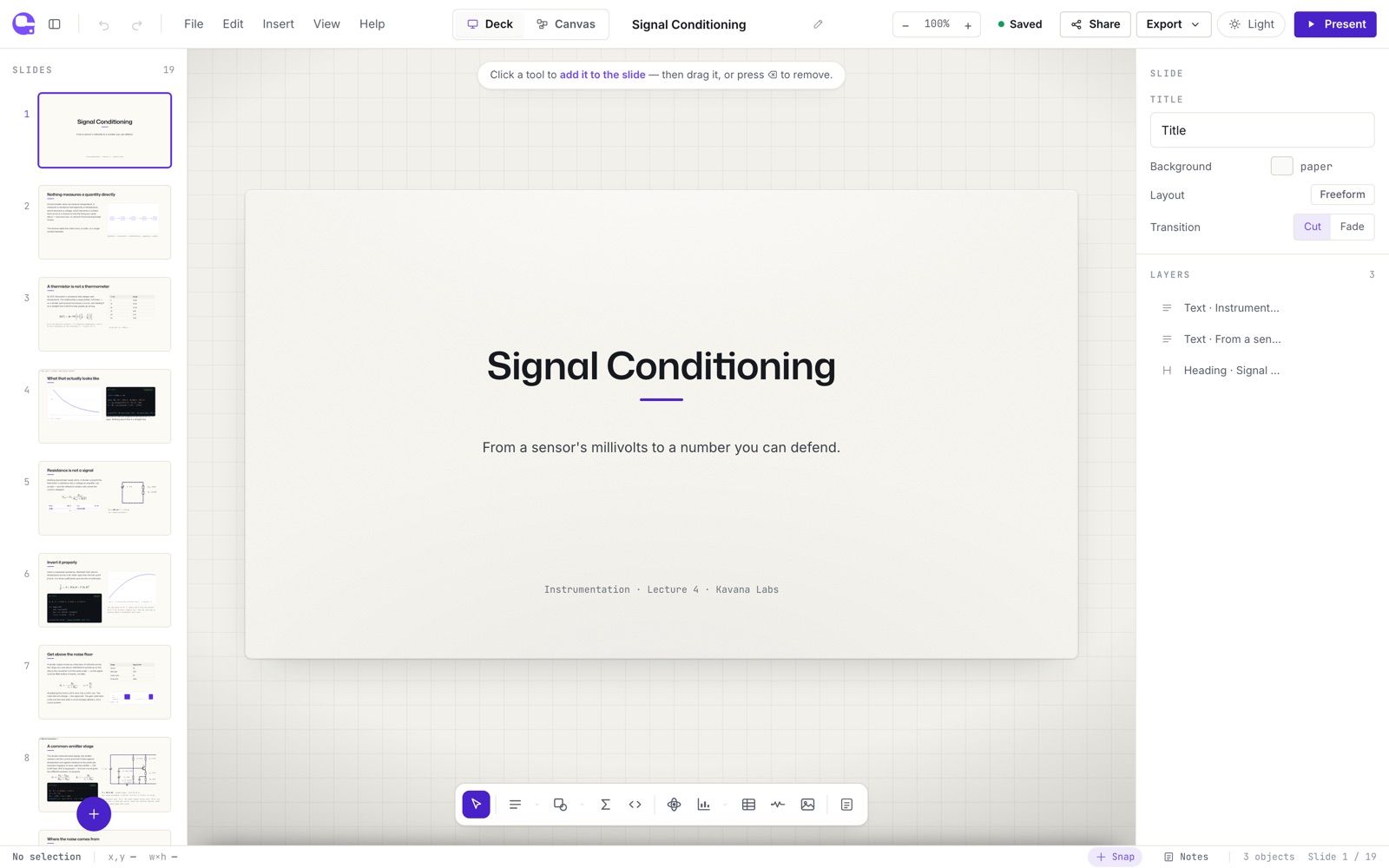
The top bar#
From the left: the Quodra mark (which takes you back to your decks), the slide-rail toggle, Undo and Redo, Insert, Library, and Design.
The centre holds the Deck / Canvas view toggle and the deck's name, which opens the deck menu. A chip appears beside it when the deck is not simply yours: Shared with you · can edit on someone else's deck, Sample · read-only on a sample you have not yet edited.
On the right: who else is in the deck, the save badge, Share, Export, Present, the ⋯ menu, and the inspector toggle.
The deck menu#
Click the deck's name, or press Enter on it, for what you can do with the deck as a whole. The menu's head shows its first slide, its name, its folder, and whether it is saved. Below it:
- Rename — type a new name in place.
Enterkeeps it andEscputs the old one back. Double-clicking the name does the same, and one⌘Zundoes it. - Make a copy — a copy in your library, which opens.
- Move to folder — your folders, with a tick on this deck's, No folder, and New folder….
- Revision history — every saved version of the deck, by day, to look at and restore. See Revision history.
- Import as a new deck… — a PowerPoint file, a PDF, a Quodra file, or a file from Google Drive, as a deck of its own. The deck you have open is left as it is. See Import & export.
- Export… (
⌘E) — the export dialog, the same as Export on the right of the bar. - Move to trash — the deck goes to the trash and you go back to your decks, where Undo brings it back.
The menu offers what your access allows. On someone else's deck that you can edit, it has Make a copy, Revision history, and Export…; on a deck you can only view, or a sample you have not edited, Make a copy and Export…. Double-clicking the name renames any deck you can edit. On a sample, the new name is your first edit, so it saves your own copy.
View, settings and help#
The ⋯ near the right end of the bar holds the view, the editor's settings, and help.
- Show — Slide rail (
⌘\), Library, Inspector (⌥⌘\), Speaker notes, and Comments. A tick marks each one that is open. - Editor appearance — Light, Dark, or System, the same choice as Settings › Preferences › Theme, where System is called Match system. It changes the editor, not your deck: a deck's own look is in Design.
- Settings — Code editor… and Python runtime….
- Help — Keyboard shortcuts (
⌘/), Take the tour, Help and docs (these pages), and Send feedback… on a cloud account. - Search every command (
⌘K) — the command palette, which finds every action in the editor by name, these menus' included.
On a phone, both menus open as a sheet from the bottom of the screen.
The insert toolbar#
The floating pill along the bottom of the stage adds objects. Each button carries a tooltip with its shortcut, and tools with a caret open a menu of variants.


| Tool | Shortcut | Variants in its caret menu |
|---|---|---|
| Move | V | — |
| Text | T | Body text T, Heading H |
| Rectangle | R | Rectangle R, Circle O, Line L |
| Equation | E | — |
| Code | C | — |
| Parameter | P | — |
| Simulations | S | — |
| Chart | W | Bar, Line, Scatter, Area, Step, Diagram |
| Table | ⌘B | — |
| Circuit | ⌘U | — |
| Matter Lab | Y | Crystal structure Y, Phase diagram, Diffraction (XRD), Spectrum, Stress–strain, Gibbs energy, Trajectory (MD), Field playback, Ashby chart, Micrograph |
| Insert image | M | — |
| Comment | K | — |
Table is ⌘B and Circuit is ⌘U on purpose: ⌘T opens a browser tab and ⌘C is copy, and Quodra never takes a key the browser or the OS already owns. The tooltips and the key bindings are generated from one table, so a tooltip can never advertise a key that does nothing.
Every object kind#
The Insert menu lists every registered type, including the ones that have no button of their own:
| Object | What it is |
|---|---|
| Heading | Slide or section title |
| Text | Body copy block |
| Shape | Vector primitive |
| Image | Raster or vector figure |
| Table | Editable data grid — feeds charts |
| Chart | Plot bound to a data source |
| Diagram | Node-and-edge graph |
| Simulation | Live interactive model |
| Citation | A single reference — key, entry type, author, title, year, and the fields its type uses |
| Bibliography | Every citation on the deck, listed and numbered in one style |
| Parameter | A panel of numbers, and what they produce |
| Equation | Typeset expression with Visual, Linear and LaTeX editing |
| Molecule | 2-D structure from SMILES |
| Code | Executable cell — output regenerates downstream |
| Artifact | Generated output from a cell |
| Circuit | A schematic that solves on the slide |
| Crystal | Crystal structure in 3-D |
| Diffraction | Powder XRD — imported or simulated |
| Phase diagram | Regions, state point, lever rule |
| Spectrum | Raman, FTIR, XPS, UV-Vis and more |
| Stress–strain | Mechanical test with derived properties |
| Gibbs energy | G–x curves and the common tangent |
| Ashby chart | Materials selection on log–log axes |
| Trajectory | MD playback with defect colouring |
| Field | 2-D scalar field played through time |
| Micrograph | Calibrated microscopy image |
Selecting#
- Click an object to select it; ⇧-click adds to or removes from the selection.
- Drag on empty slide draws a marquee; everything it touches is selected.
⌘Aselects every visible object on the slide. Hidden objects are left out.Escclears the selection, closes menus, and leaves inline editing.Enter, or a double-click, starts inline editing on a single selected object. Locked objects refuse.
Selected objects can be nudged with the arrow keys — one slide pixel at a time, or ten with ⇧ held. ⌘C / ⌘X / ⌘V copy, cut, and paste; ⌘D duplicates; ⌫ deletes. ⌘] brings the selection to the front and ⌘[ sends it to the back.
Guides, snapping, and the grip#
Dragging an object shows smart guides — a vertical or horizontal line with the coordinate it has snapped to, so alignment is a decision you can see. The Snap button in the status bar turns the behaviour off when you want free placement. The Grid button beside it draws a grid on the slide and settles a dragged object on its lines where no guide does; the grid is 20 points apart unless Settings › Editor chooses another step.
A selected object has corner handles for resizing and a rotate grip; hold ⇧ while dragging it for fifteen-degree steps. Rotation is also typed directly in the inspector, and Level puts it back to zero. From a corner, pictures, videos and icons keep their proportions and anything else stretches; ⇧ swaps the two. Settings › Editor › Keep proportions gives every object the picture's rule.
Zooming and panning#
The zoom control sits at the corner of the stage: Zoom out, the current percentage (click to reset), and Zoom in. ⌘+ and ⌘− step it, ⌘0 returns to a fitted hundred per cent, and pinch or ⌘-scroll zooms around the pointer. Hold Space to pan.
The right-click menu#
Right-clicking inside the editor opens Quodra's own menu rather than the browser's — except in text fields, where cut, paste, and spelling suggestions are worth more than anything we could offer.
- On empty slide — Select all objects, Duplicate slide, Add slide after, Show/Hide speaker notes.
- On an object — Duplicate, Bring to front, Send to back, Lock/Unlock, Show/Hide, Delete.
The inspector#
The panel on the right shows the settings for whatever is selected. Drag its inner edge to resize it; double-click that edge to return it to the default width. The width is remembered by this browser.
With one object selected the panel opens with the object's name, a one-line description of the type, and four buttons — Lock, Hide, Duplicate, Delete — followed by the fields for that kind:
- Text — Style (Body, Quote, Caption), Font (Sans, Serif, Mono), Color, Size, Weight, Align, Line height, List (None, Bullet,
1.). - Heading — Level (H1, H2, H3), Font, Size, Weight, Accent rule, Align.
- Shape — Shape (Rect, Ellipse, Line), Fill, Stroke, Stroke width, Corner radius.
- Image — Replace image…, Alt text, Fit (Contain, Cover, Fill), Rounding, Filter (None, Gray, Dim), Caption.
Charts, tables, equations, code cells, parameters, circuits, molecules, and every Matter Lab object have their own panels; those are covered on their own pages.
Below the type fields, and shared by every kind:
- Align — a six-button matrix: Left, Center H, Right, Top, Middle, Bottom.
- Position & size — X, Y, W, H and ROT, in slide points (the deck's own unit: a widescreen slide is 960 × 540), with a Level button for rotation. Settings › Editor › Units shows them in pixels, centimetres or inches instead; the deck keeps points, so it reads the same to everyone.
- Appearance — an opacity track, Fill, Corner radius, and Shadow.
With several objects selected the panel says how many, and the Align matrix and Layers stay available. With nothing selected it shows the slide: Title, Background, Layout (which reads Split · code on a slide that has a code cell and Freeform otherwise), and Transition — Cut or Fade.
Property fields show the values you authored. For an equation containing {{R}}, open LaTeX mode to edit the placeholder; the slide displays the parameter's current value.
Layers#
The Layers list at the foot of the inspector shows every object on the slide, front at the top, with its type and a snippet of its content. Click a row to select it — the reliable way to reach something sitting behind something else. Drag a row to restack it, or use the per-row buttons: Bring forward, Send backward, Lock, Hide.
The slide rail#
The rail on the left lists your slides as numbered miniatures with live previews. Click to go to one, drag to reorder, and use the button at the foot of the list to add a slide. Right-click a mini for Duplicate slide, Add slide after, and Delete slide — the last is refused when only one slide is left. ⌘\ hides and shows the rail.
Use as cover in the same menu makes that slide the picture on the deck's card in your library, everywhere you sign in; Stop using as cover hands it back. Until you choose, a card shows the deck's first slide that computes — an equation that calculates, a chart drawn from a table, a circuit, a molecule, a spectrum and the like — or its first slide when none does.
The status bar#
Along the bottom: what is selected, the selected object's x,y and w×h, the Snap toggle, the Notes toggle for speaker notes, how many objects are on the slide, and which slide you are on.
Your editor settings#
Settings › Editor holds how your new decks start and how the editor behaves for you. Each is kept on your account; a deck you have made keeps its own size, packages and numbers.
- New decks: the Slide size a new blank deck takes, and what Blank starts from — a blank slide, or one of the templates. Home's Blank tile says what it will make.
- On the canvas: the inspector's Units; Snap to objects and Snap to a grid (with its step, 8 to 24 points), the same switches as the status bar's; Keep proportions for every object.
- Text & equations: Check spelling, in the language chosen in Preferences, for text boxes, headings, tables and notes; Smart quotes and dashes, which curl
"and'as you type and make an en dash of--or of a hyphen between spaces (code and equations keep exactly what you typed); and Number display equations, so a new display equation starts numbered. - Computed numbers: how many significant figures a new equation's calculated result shows, from 2 to 6. The inspector's Rounding still changes one equation.
- Code cells: the packages a new deck starts with, whether your own decks' cells run when they open (Always, Ask — a banner offers Run cells or Not now — or Never), and how long a run may take. See Python.
- Presenting: whether Present starts from this slide or the beginning, whether the presenter's notes panel opens, and a small slide number in the corner for the audience. See Presenting.
Deck view and Canvas view#
When Canvas is enabled for your account and deployment, the centre of the top bar offers two views of the same document.
- Deck — the classic slide-by-slide view, with the rail and the stage.
- Canvas — an infinite plane with separately positioned objects and named camera frames. Present mode can glide the camera between frames. See The canvas view.
Undo#
Undo keeps recent local edits for the current document: ⌘Z steps back, ⇧⌘Z steps forward, and both are also on the top bar and in the command palette (⌘K). The default history holds up to 200 entries. A continuous gesture is grouped into one entry. Use Revision history for older saved versions.
Saving and sync#
Everything autosaves. The badge beside Share is the whole state in one word — Saved, Saving…, Syncing…, Offline, Conflict, or Error — and clicking it opens Revision history, whose card at the top says the same in a sentence: Saved here and in the cloud and when, or what went wrong and what to do. ⌘S saves immediately.
When other people are in the deck, their cursors and selections appear live and edits flow both ways as they happen; the revision-checked save underneath stays the durable record. See Collaboration.
Revision history#
Revision history is the deck's saved past, in a window of its own. Open it from the save badge, from Revision history in the deck menu, or from ⌘K; Back to editing or Esc takes you back.
- The timeline, on the right, lists the saves by day — Today, Yesterday, then the date. Each row is a stretch of saves by one person, within about half an hour: the time, who, and what changed. A change made by Ask Quodra is marked Ask Quodra; one made by a connected assistant says via MCP and its name. Current comes first and lists the changes you made in this session.
- Choose a revision to see it before doing anything with it: its slides on the left, a dot on each slide it changed, and the chosen slide, large and read-only, in the middle.
←and→step through the slides. - Restore this revision asks first. The revision becomes the current one for everyone with the deck open, as a new revision, so nothing is lost: the one that was current stays in the history. A notice says it is done, with Undo to put back what you had.
- Make a copy opens the revision as a deck of its own.
- Name and keep…, in a revision's ⋯ menu, keeps it for good under a name; choosing it again renames it. Kept lists every revision you have kept. Settings › Sharing & export › Keep a version when you present keeps one each time a talk starts.
The line at the foot says what your plan keeps — for example, 2 of 50 kept. Every save stays 14 days, then fewer; kept ones stay for good — and the ⓘ beside Kept has its windows: every save for a while, then one an hour, then one a day. Keeping more than your plan allows says so, and how many it allows.
If the deck changed on this device and in the cloud at once, the card at the top says Two copies differ, and who saved the cloud's copy. Compare This device with the cloud's copy in the preview, then choose Keep this device or Use the cloud's. Nothing is overwritten until you choose.
On a phone, Revision history is the timeline on its own, with Preview and Restore at the foot for the revision you choose.
Imported and shared decks never run their Python automatically. A banner says Python is paused for this external deck until you review the cells and press Trust and run.